
My gaming rig started acting up. Speed tests showed about 300 Mbps on a connection that normally does 1.2 Gbps, games rubber-banded, and even the mouse felt sluggish in online games. It’s a wired 2.5 GbE PC on a UniFi network, so none of that should have been happening.
This is how my AI assistant and I tracked it down, wrong turns included. Most of the useful lessons came from the wrong turns.
Step 1: Start from the network side
First we checked the network without touching the PC. The UniFi API showed:
- The PC on a USW Flex 2.5G at 2.5 Gbps full duplex, with zero errors and zero drops on its port.
- The WAN at 100% availability, with the UDM’s own speed test at 1221 Mbps.
- An old error counter on the switch uplink that didn’t increase between two samples taken a minute apart.
I swapped both the cable and the switch port. Nothing changed.
Lesson: sample counters twice. A cumulative error count with no timestamp tells you nothing about whether a problem is happening now.
Step 2: Get onto the box
Ping from the PC showed 15% loss and an 89 ms average to the gateway, one switch hop away. A Linux server on the same switch showed 0% loss and 0.2 ms. So the fault was somewhere between the PC’s network port and Windows itself.
The usual suspects got fixed along the way. They helped a little, but none of them was the answer:
- Realtek power saving (Green Ethernet, Gigabit Lite, Power Saving Mode) was on. Turning it off improved things, briefly.
- Driver: updated to the latest WHQL Realtek build from the Microsoft Update Catalog. The Realtek website put a CAPTCHA in front of the download. No change.
- Hyper-V: there was an external vSwitch on the unused Wi-Fi card and an old VM. Removing Hyper-V and rebooting gave perfect numbers: 0% loss, 0 ms.
…and ten minutes later the problem was back.
Lesson: “it’s fixed after a reboot” isn’t proof. Re-test after the system has been up for a while.
Step 3: Stop guessing and let the kernel tell you
The System process was steadily using 75–85% of one CPU core. That usually points at a driver. We tested and ruled out a list of suspects one at a time: the Diagnostic Policy Service, Corsair iCUE and its kernel drivers, WSL, Defender’s network sensor, and the ChatGPT/Codex desktop app. Codex made things worse but wasn’t the trigger.
A clean boot made the problem go away, and every app we re-enabled seemed to bring it back. That looks like a startup app, but it turned out to be a coincidence of timing.
What actually solved it was installing the Windows Performance Toolkit and taking a 20-second kernel CPU profile with symbols:
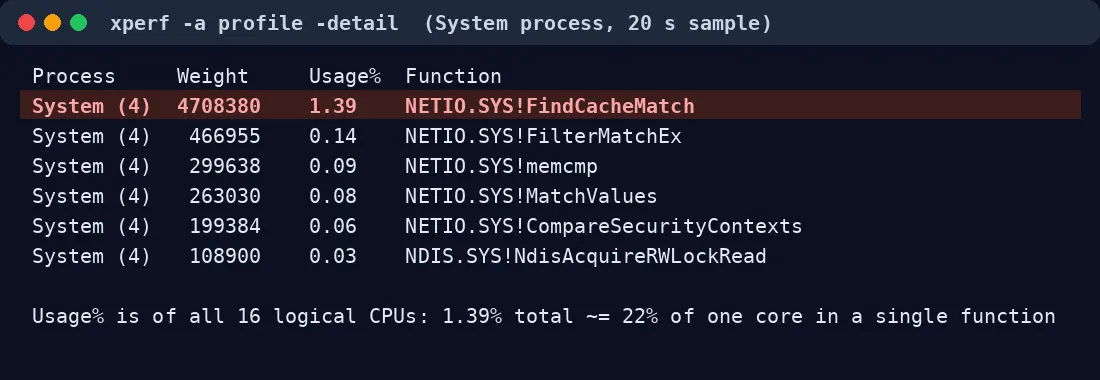
NETIO.SYS!FindCacheMatch is the Windows Filtering Platform (the engine behind Windows Firewall) matching each incoming packet against its rule cache. The PC wasn’t stuck on any app. It was spending most of a CPU core filtering incoming packets.
Lesson: a kernel profile with symbols answers in one step what an afternoon of disabling services one at a time didn’t.
Step 4: Count the packets
If the firewall is overloaded, something must be sending a lot of packets. Two counters settled it:
Packets Received Non-Unicast/sec: ~5,800Packets Received Unicast/sec: 47
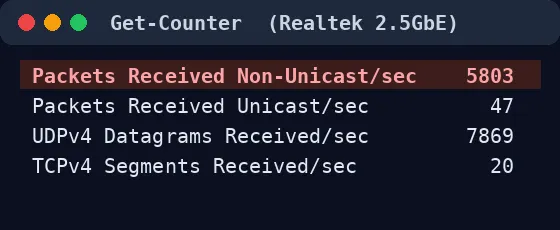
The PC was receiving about 120 multicast packets for every packet actually addressed to it. A three-second pktmon capture showed where they came from:
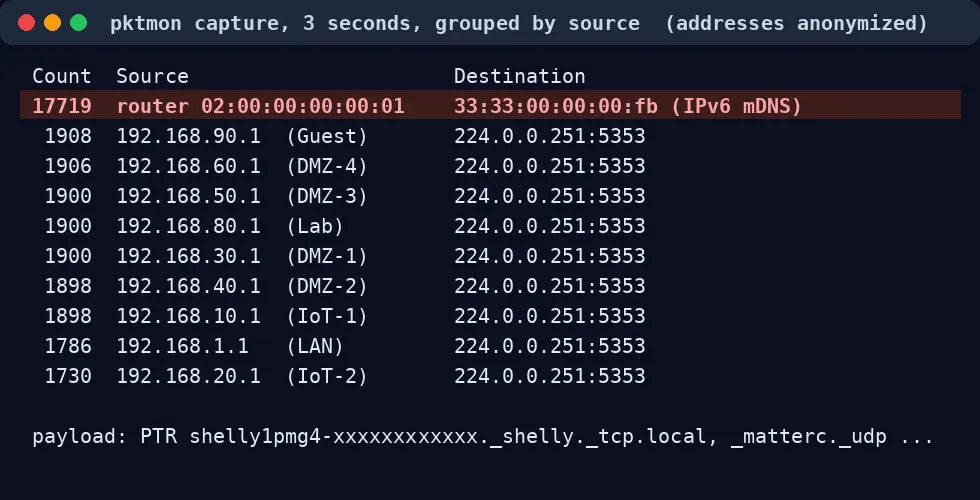
All of it came from my own router, once from every VLAN. Looking inside the packets:
PTR shelly1pmg4-a085e3b6073c._shelly._tcp.local
AAAA? Shelly1PMG4-A085E3B7BD70.local
PTR _CM._sub._matterc._udp.local
The root cause: 47 light switches and a multicast amplifier
I have about 47 Shelly 1PM Gen4 relays on an IoT VLAN. Most were still on early firmware with Matter enabled, and they keep announcing themselves and looking each other up over mDNS. On a single VLAN, that’s background noise.
But the UDM’s mDNS reflector was enabled for all nine VLANs and all services. Every Shelly packet was copied into eight other networks, as IPv4 and again as link-local IPv6. The result was thousands of packets per second hitting every device on the main LAN. Most devices ignore that. A Windows PC with a full firewall stack has to inspect every one.
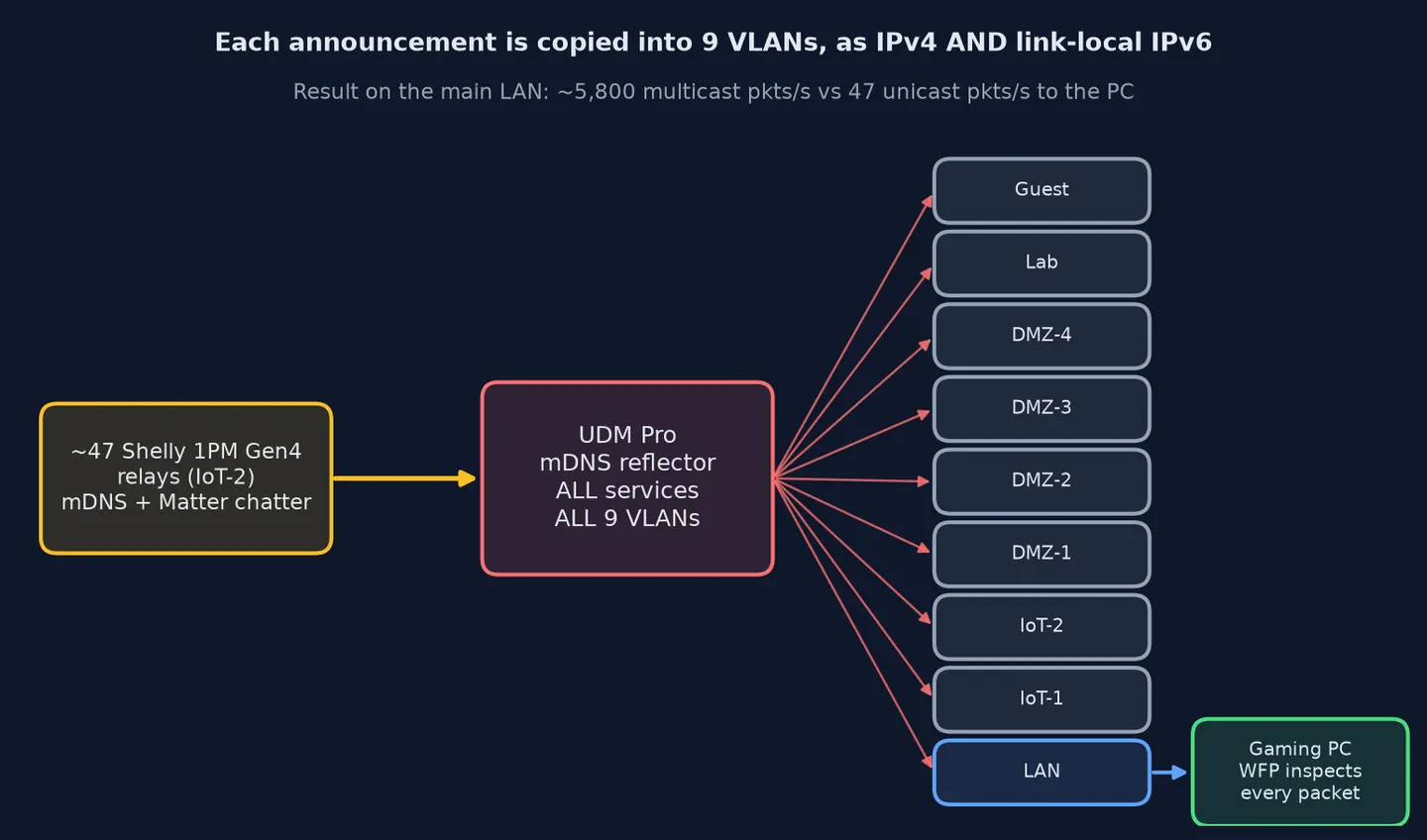
That also explains why each reboot seemed to fix things for a while. A reboot starts the firewall cache fresh, and it takes a few minutes for the flood to fill it back up. And it explains why launching Edge or ChatGPT made it worse: both do their own mDNS discovery, which adds to the flood and prompts more answers.
The fix
- UniFi → Settings → Networks → Multicast DNS: reflect only between the three networks that need it, and only for named services (AirPlay, Chromecast, HomeKit, Home Assistant, Shelly).
- On the PC: turn off IPv6 on the Ethernet adapter and turn off Windows’ mDNS listener. Even with IPv6 disabled on the VLANs, the UDM still reflects link-local IPv6 mDNS, and that can’t be turned off in the UI.
- Shelly firmware: update the relays and turn off Matter on devices that only Home Assistant manages. (Still in progress.)
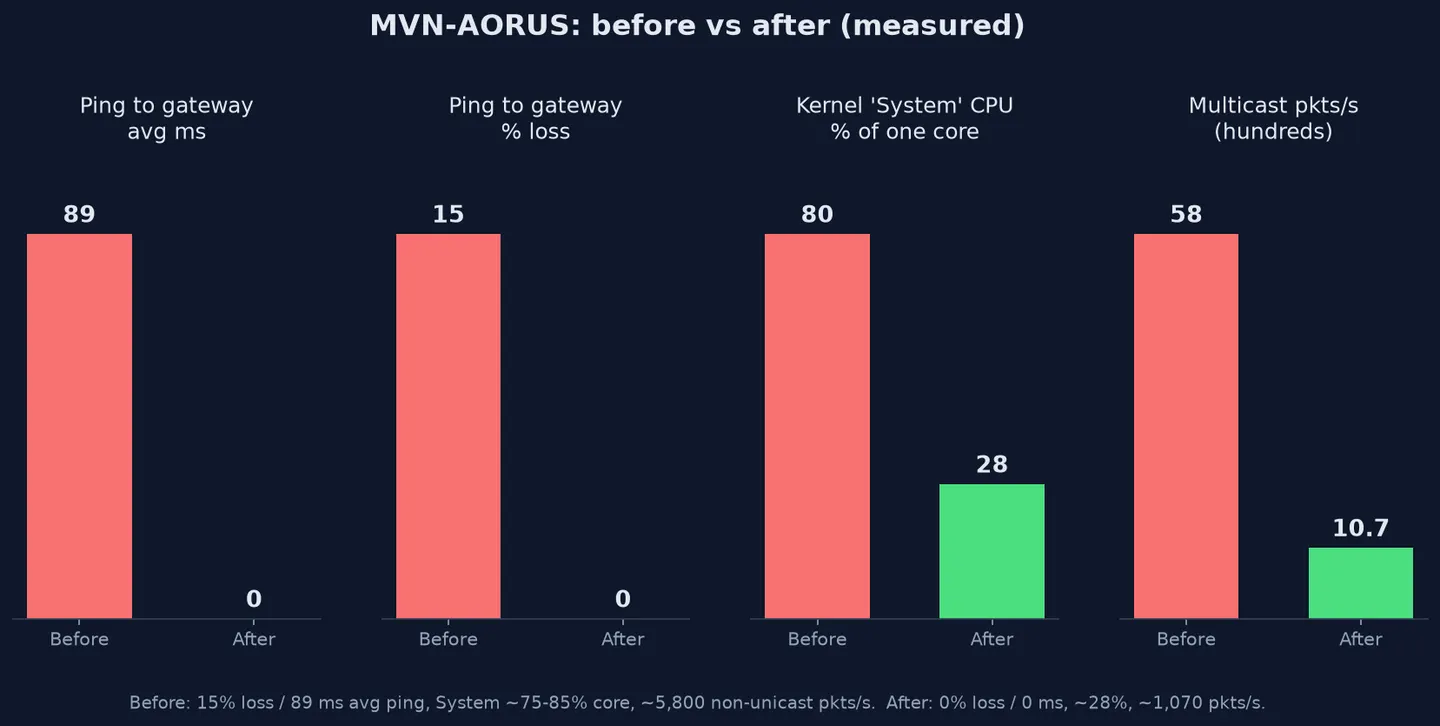
Result: 0% loss and 0 ms to the gateway, 11 ms to 1.1.1.1 with Edge open, and kernel CPU down from about 80% of a core to about 28% and falling.
What I’d do differently
- Check
Non-Unicast/secfirst. It’s a ten-second check, and here it would have saved hours. - Profile the kernel before disabling services one by one. Turning things off and watching what changes just tells you what happened to change; a profile shows you what’s actually using the CPU.
- Treat the mDNS reflector as an amplifier. “Reflect everything to every VLAN” works fine with ten devices and causes a storm with fifty.
- Take tool output with a grain of salt. The UniFi API returned
rc: okwhen I changed mDNS settings, but nothing had actually changed. Always read the setting back.
The cable was fine, and so were the NIC and the ISP. The problem was 47 light switches whose announcements the router was copying to every VLAN.